
Yes, you can use a robot vacuum without wifi: the Clean button starts it and it docks itself, but you lose app maps, schedules and voice control.
What a robot vacuum without wifi can still do
Cleaning, navigation and docking run on the robot itself. The wifi connection only links the robot to the app and the manufacturer’s cloud, so the core job continues without it:
- Start, pause and stop with the buttons on the robot’s top panel.
- Auto cleaning using onboard sensors such as bumpers and cliff sensors, plus LiDAR or a camera on some models.
- Returning to the dock when the battery runs low or the job ends.
- Charging on the dock and, on models with a self-empty dock, emptying the bin.
- Spot cleaning or max-power modes if the robot has dedicated buttons for them.
Some basic models have no wifi hardware at all and start from the onboard button or an included remote. These are offline by design, and they are the simplest option if all you want is push-button cleaning.
Robots that do have wifi still clean without it. The difference is that the app can no longer reach them, so anything you would normally set from your phone has to be done at the robot or skipped.
Which features stop working offline
Anything that depends on the app or the cloud stops. Anything the robot does on its own keeps going.
| Feature | Works offline? | Why |
|---|---|---|
| Button start, pause and stop | Yes | Controlled by the robot’s own panel |
| Return to dock | Yes | Uses the dock’s signal, not wifi |
| Self-emptying (models with a self-empty dock) | Yes | Handled between the robot and its dock |
| App schedules | No | Set and managed through the app |
| Room selection | No | Chosen from the app map |
| Viewing or editing maps | No | Needs the app |
| Alexa and Google Home voice control | No | Both need an internet connection |
| Firmware updates | No | Delivered over the internet |
If your wifi drops after setup, the robot still cleans when you press Clean. Whether it also runs schedules already saved on the robot depends on the model. To find out, unplug your router once and see whether the next scheduled run starts.
Does setup always need wifi?
For app-based robots, yes, once. Most ask you to connect to a 2.4 GHz network during first-time setup, and many robots only support 2.4 GHz, so check the manual for your model. Some robots let you press the button and clean before you register, but that is not universal.
If you want smart features later, connect once, finish setup and install any firmware update. After that, you decide how connected to stay.
If you have no home internet, you have three workarounds:
- Phone hotspot. Turn on your phone’s hotspot, set it to 2.4 GHz if your phone offers the choice, and pair the robot through the app.
- Another network for setup. Pair the robot on a friend’s or workplace network, if you have permission. Your phone and the robot must be on the same network during pairing.
- Skip setup. Buy a button-only or remote-control model and never connect it.
If pairing keeps failing, the cause is often the wifi band, the password or distance from the router rather than the robot. Our guide on smart home devices that won’t connect to wifi walks through the usual fixes.
How to start, dock and schedule using buttons or a remote
Button names differ by brand, so use the quick-start card for your model. The general steps are:
- Place the dock on a hard, level surface against a wall. Follow the manual for the clear space it needs on each side and in front.
- Charge fully before the first run.
- Clear the floor of cords, socks and small items.
- Press Clean, often the center button, to start. Press it again to pause.
- Press the dock or home button to send the robot back, or let it return when it finishes.
- Use the remote if one is included, for direction, spot mode and, on some models, timers.
Scheduling offline. A few basic robots have an onboard clock and a timer you set with the buttons or remote. Most app-based models schedule only through the app. If you need a daily run and don’t want wifi, pick a model whose manual lists onboard or remote scheduling. If it isn’t listed, assume it isn’t there.
Navigation without the app. Robots with random-bounce navigation clean without any map but cover a floor less efficiently. Models with LiDAR or a camera can still navigate offline, though you can’t view or edit their maps without the app. Fully offline models tend to be budget units with simpler obstacle avoidance, which is usually fine for occasional cleaning on one floor.
Privacy, safety and pitfalls of staying offline
Privacy. A robot that never connects sends no map, schedule or camera data to a cloud service, which is the main reason people avoid wifi. If you do connect, review the app’s privacy settings.
Updates. Firmware updates need an internet connection, so an always-offline robot won’t receive fixes or improvements. If you update, use the manufacturer’s own app.
No remote stop. Without the app you can’t pause the robot from your phone, so use the physical button and take these precautions:
- Keep stairs blocked, and keep the cliff sensors clean.
- Pick up charging cables, cords and loose items before each run.
- Use a physical barrier near pet bowls or fragile items. Magnetic boundary strips work only on models that support them.
- Stay nearby the first few runs in rooms with hazards the sensors may miss.
Common mistakes:
- Assuming all brands behave alike. Offline features differ by brand and model, so read your manual.
- Buying a model labeled smart and expecting button-only scheduling. Look for onboard timers in the manual.
- Counting on schedules during an outage. Test it before you rely on it.
- Poor dock placement. This causes failed returns with or without wifi.
When it makes sense to connect anyway
A simple rule: if you need scheduling, room selection or map editing, you need wifi at least occasionally. If you only need push-button cleaning, staying offline works well.
A middle path is to connect once, set up your map and schedules, and then use the buttons day to day. You can compare what current connected models offer in our best robot vacuums roundup before deciding how much connectivity you want.
Our Top Picks
Ready to shop? These are the top-rated options from our hands-on roundup, Best Robot Vacuums of 2026.

eufy E25 Robot Vacuum with HydroJet Mop

eufy C28 Robot Vacuum and Mop Combo, 15,000 Pa
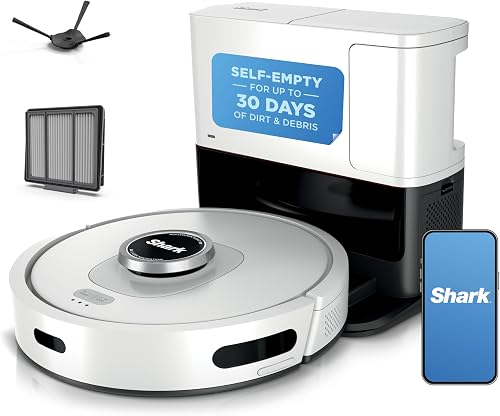
Shark AI Ultra Robot Vacuum AV2511AE
As an Amazon Associate we earn from qualifying purchases. Product prices and availability are accurate as of the date/time indicated.
Related reading: How to Vacuum Shag Area Rugs Without Damaging Them · eufy E25 Robot Vacuum with HydroJet Mop Review 2026
Frequently Asked Questions
Will it work if I change my router?
The robot still cleans with its buttons. App control stops until the robot is connected to the new network, which usually means re-pairing it through the app. Follow your manual’s steps for changing networks, and check whether it keeps your map.
Can I use it with a 5 GHz-only network?
Many robot vacuums only support 2.4 GHz, so a 5 GHz-only network usually won’t work for pairing. Check your manual. If your router combines both bands under one name, a phone hotspot set to 2.4 GHz is an easy way to complete setup.
Does a factory reset erase the map?
A factory reset typically erases saved maps, schedules and wifi settings, so you would need to pair the robot and map your home again. Follow the manual’s reset steps, and avoid resetting unless troubleshooting calls for it.
Can I use a phone hotspot to set up a robot vacuum?
Often yes. Turn on your phone’s hotspot, choose 2.4 GHz if your phone offers it, and pair the robot through its app. After setup you can switch the robot to a home network later, or keep using the buttons without connecting.
Will my robot keep its map if wifi goes down?
Many robots store the map in onboard memory, so cleaning continues, but you can’t view or edit the map in the app until wifi returns. To confirm for your model, turn off your router and start a cycle with the Clean button.
{“@context”: “https://schema.org”, “@type”: “FAQPage”, “mainEntity”: [{“@type”: “Question”, “name”: “Will it work if I change my router?”, “acceptedAnswer”: {“@type”: “Answer”, “text”: “The robot still cleans with its buttons. App control stops until the robot is connected to the new network, which usually means re-pairing it through the app. Follow your manual’s steps for changing networks, and check whether it keeps your map.”}}, {“@type”: “Question”, “name”: “Can I use it with a 5 GHz-only network?”, “acceptedAnswer”: {“@type”: “Answer”, “text”: “Many robot vacuums only support 2.4 GHz, so a 5 GHz-only network usually won’t work for pairing. Check your manual. If your router combines both bands under one name, a phone hotspot set to 2.4 GHz is an easy way to complete setup.”}}, {“@type”: “Question”, “name”: “Does a factory reset erase the map?”, “acceptedAnswer”: {“@type”: “Answer”, “text”: “A factory reset typically erases saved maps, schedules and wifi settings, so you would need to pair the robot and map your home again. Follow the manual’s reset steps, and avoid resetting unless troubleshooting calls for it.”}}, {“@type”: “Question”, “name”: “Can I use a phone hotspot to set up a robot vacuum?”, “acceptedAnswer”: {“@type”: “Answer”, “text”: “Often yes. Turn on your phone’s hotspot, choose 2.4 GHz if your phone offers it, and pair the robot through its app. After setup you can switch the robot to a home network later, or keep using the buttons without connecting.”}}, {“@type”: “Question”, “name”: “Will my robot keep its map if wifi goes down?”, “acceptedAnswer”: {“@type”: “Answer”, “text”: “Many robots store the map in onboard memory, so cleaning continues, but you can’t view or edit the map in the app until wifi returns. To confirm for your model, turn off your router and start a cycle with the Clean button.”}}]}