
It usually happens the same way. You get a new router, or switch internet providers, or finally upgrade to a mesh system – and within an hour, half your smart home is dead. The Govee strip won’t reconnect. The Wyze camera sits there blinking. The robot vacuum insists it can’t find a network at all, even though your phone is happily streaming video two feet away. Nothing is actually broken. This is almost always one of three specific, fixable problems: your device can only use one Wi-Fi band and got handed the wrong one, your router is quietly steering everything onto that wrong band, or a security setting called WPA3 is rejecting the handshake before it ever finishes. Once you know which of the three you’re dealing with, the fix usually takes minutes.
Start Here: The 60-Second Diagnosis
Before you start changing router settings, answer three quick questions – they’ll point you straight at the right fix instead of making you read the whole guide.
- Did every device drop at once, right after a router or ISP change? That’s almost always band steering or WPA3 – skip to those two sections below.
- Is it one brand-new device that won’t pair in the first place? That’s a band mismatch – your phone is probably handing it the wrong network.
- Is it one device that had been working fine and just fell off on its own? That’s usually device-specific – jump to the device-specific fixes near the end.
Why Almost Every Smart Device Is Stuck on 2.4 GHz
This isn’t a defect – it’s a deliberate tradeoff. The 2.4 GHz band travels further and pushes through walls and floors better than 5 GHz, and the radio hardware needed to use it draws meaningfully less power. For a battery-powered camera or a sensor that needs to last months on a coin cell, that difference matters more than raw speed. Wyze says this directly about its battery-powered cameras, and it’s the same reasoning behind nearly every smart plug, bulb, and sensor on the market. None of this makes 2.4 GHz obsolete – it’s still the standard band for new smart-home hardware shipping in 2026, on purpose.
The trap that catches almost everyone: your phone has to be on 2.4 GHz too
This is the single most under-explained step in smart-home setup. Most manufacturer apps don’t ask you to type in a network name – they just hand the device whatever network your phone is currently connected to. If your home network uses one combined name for both bands and your phone happens to be riding the 5 GHz half at that moment, the app quietly passes your 2.4-only device a network it is physically incapable of joining. You get a vague “couldn’t connect” error that looks like a device problem but isn’t. Shark’s app behaves exactly this way, and iRobot’s own setup instructions explicitly tell you to manually connect your phone to the 2.4 GHz network before you start pairing. If setup is failing on a brand-new device, check your phone’s Wi-Fi settings first – it’s the fastest fix on this entire page.
Which of Your Devices Are Actually 2.4 GHz Only? (Brand by Brand)
“Most smart devices are 2.4 GHz only” is true but not that useful on its own – what you actually need is the specific list, including the exceptions that make people assume a device is broken when it’s actually fine on 5 GHz. Every row below is checked against the manufacturer’s own documentation.
| Brand / Device | Band Support | Notes |
|---|---|---|
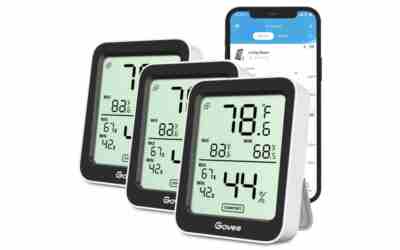
| Govee lights, strips, plugs | 2.4 GHz only | The whole lineup. Govee’s own FAQ tells you to temporarily disable 5 GHz to get a stubborn device to pair. |
| Wyze cameras | 2.4 GHz only – with 4 exceptions | The Cam v3, v4, and most of the lineup are 2.4-only. The Doorbell Pro, Duo Cam Doorbell, Battery Cam Pro, and Cam Floodlight Pro do support 5 GHz. |
| Dyson purifiers and fans | 2.4 GHz only | No 5 GHz support, and no 6 GHz either – explicitly 2.4 GHz across the connected lineup. |
| Shark robot vacuums | 2.4 GHz only | Every SharkClean robot on the market ships without a 5 GHz radio at all. |
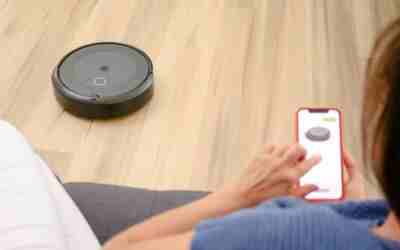
| iRobot Roomba | Mixed – check your model | The s-series, i-series, and Braava jet m-series are dual-band. The Roomba Combo 405 and the 600 series are 2.4 GHz only. |
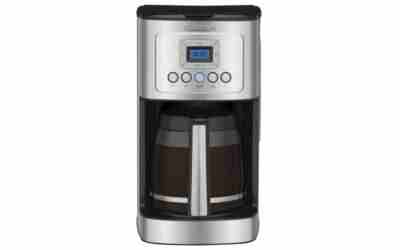
| Keurig K-Supreme Plus SMART | 2.4 GHz only | Also requires WPA2-PSK specifically, and will fail to connect on any network that uses a captive portal or click-through login page. |
| Philips Hue | N/A – different architecture | The bulbs use Zigbee and never touch your Wi-Fi at all. Only the Bridge joins your network, over Ethernet (recommended) or Wi-Fi on Bridge Pro – which is exactly why Hue tends to survive a router change better than almost anything else in this table. |
One honest gap: we could not verify a currently-shipping Wi-Fi-connected Ninja Kitchen appliance, so it isn’t included here rather than guessed at. If you have a specific connected Ninja model and it isn’t behaving as expected, the router-side fixes below will still apply.
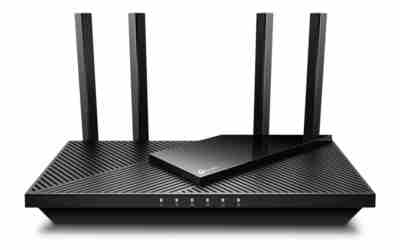
Router Fix #1: Turn Off Band Steering (“Smart Connect”)
Band steering merges both bands under one network name and lets the router decide which one each device gets. The problem is specific: some routers actively suppress 2.4 GHz probe responses to push devices onto 5 GHz for better performance, which means a 2.4-only device doesn’t connect slowly – it just plain fails, over and over, with no useful error message.
Where to turn it off, by brand:
- TP-Link: Advanced → Wireless → Wireless Settings (or in the Tether app: More → Wi-Fi Settings)
- NETGEAR: log into routerlogin.net → Wireless → Smart Connect
- D-Link / Motorola: look for a Smart Connect or band-steering toggle in the wireless settings
Once it’s off, you’ll get two separate networks to configure – give them clearly different names (for example Home for 2.4 GHz and Home-5G for 5 GHz) so you always know which one a device actually joined.
If you have a mesh system (eero, Google Nest Wifi, Orbi), you can’t do this
This trips up a lot of people. Most mesh systems don’t let you split bands into separate network names at all – it’s a deliberate design choice, not a missing setting you overlooked. Two workarounds actually work:
- In the eero app, use the troubleshooting section to temporarily pause 5 GHz for about 15 minutes, pair your device while only 2.4 GHz is available, and let 5 GHz come back afterward.
- Physically walk away from the mesh node with your phone until it drops down to a 2.4 GHz connection on its own, then run setup from there.
Router Fix #2: The WPA3 Problem Nobody Warns You About
This is the newest and least-understood cause on this list. Many current Wi-Fi 6E and Wi-Fi 7 routers ship with WPA3 enabled by default – often in a “mixed” or “transition” mode that’s supposed to support both old and new devices at once. In practice, mixed mode is the actual troublemaker: older IoT chipsets attempting the WPA3 handshake can get stuck in negotiation limbo and the connection gets rejected outright, even with the correct password. This is a genuinely current problem – a Wi-Fi 7 and WPA3 compatibility issue made tech news again just this week.
What to look for: a device that pairs and then drops almost immediately, or one that fails with a generic “can’t connect” error despite you being certain the password is right. Keurig’s SMART brewer is a good concrete example – it explicitly requires WPA2-PSK and simply won’t negotiate WPA3 at all.
One honest caveat: dropping your whole network back to WPA2 does reduce your security margin, and that tradeoff is worth taking seriously rather than waving away – which is exactly why the next section’s approach is the better long-term answer.
The Permanent Fix: Give Your Smart Devices Their Own Network
This is the fix that actually solves band mismatches, band steering, and WPA3 problems all at once, and it’s the reason this guide doesn’t just end at “switch everything to 2.4 GHz.” Set up a second network specifically for smart-home devices:
- Create a second SSID on 2.4 GHz using WPA2-Personal (AES), with a name distinct from your main network.
- Leave your main network on WPA3 for phones and laptops – you don’t have to weaken security everywhere to fix this.
- As a bonus, this segments your network: a compromised smart camera on its own SSID can’t reach a laptop or NAS sitting on your main network.
- Skip obvious names like
IoT_Guest– something neutral likeHome-Devicesdoesn’t advertise a soft target to anyone scanning nearby networks.
The honest caveat competing guides tend to skip: client and AP isolation between networks can break casting, local control, and device discovery, because features like Chromecast and AirPlay rely on your phone and your devices sharing the same subnet. If you isolate the networks completely, you’ll need to specifically allow mDNS and Matter discovery to cross between them, or you’ll lose the ability to cast and control devices locally.
Reconnecting Everything After a Router or ISP Change
If you already made the change and now need to bring everything back online, this is the order that actually works:
- Reuse the exact same network name and password on the new router if you can. This is by far the biggest time-saver – most devices will silently reconnect on their own with zero re-pairing required. Try this first, before anything else on this list.
- Restart hubs before individual devices – your Echo, Nest Hub, SmartThings hub, or Hue Bridge needs to be back online before the devices that depend on it will sync.
- Zigbee, Z-Wave, and Thread devices don’t need to be re-paired at all – only their hub needs to reconnect to your Wi-Fi. This is the same reason Hue tends to weather router changes so well.
- Give it 10 to 15 minutes before assuming something failed – most devices run automatic reconnect retries in the background.
- Check the app for a “repair network” or “refresh devices” option before jumping straight to a factory reset, which should be a last resort.
Device-Specific Fixes That Actually Work
Special characters in your Wi-Fi password
This one is genuinely obscure but documented: some Shark robot models have a credential parser that chokes on certain special characters in a Wi-Fi password. If pairing keeps failing for no obvious reason, try temporarily simplifying your password to letters and numbers only, complete setup, and then decide whether to switch back.
Check these router settings too
Make sure AP isolation (sometimes called client isolation) is turned off on your main network, and confirm the device is actually connecting to your main network rather than a guest network – guest networks routinely block the local device-to-device traffic that smart-home setup depends on. It’s also worth setting your 2.4 GHz wireless mode to 802.11b/g/n mixed rather than forcing 802.11ax (Wi-Fi 6); older IoT chipsets frequently don’t negotiate the newer standard cleanly.
When it really is the device
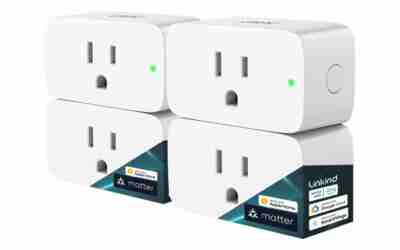
After ruling out the above, the remaining usual suspects are an outdated firmware version, physical distance from your router or nearest mesh node, and – this one catches more people than you’d expect – a smart plug sitting on a wall outlet controlled by a physical light switch. Flip that switch off and the “smart” device loses power and drops offline every single time, which looks exactly like a Wi-Fi problem but isn’t one at all.
Does Matter or Thread Fix Any of This?
Partly, and it’s worth being honest about which part. Matter devices pair over Bluetooth LE, which sidesteps the whole 2.4/5 GHz setup trap during initial pairing – the device then runs over Thread or Wi-Fi once it’s connected. That’s a real improvement.
What Matter doesn’t fix: implementation quality still varies a lot between vendors, and multi-vendor Thread border routers were genuinely unreliable until Thread 1.4 stabilized things in mid-2025. A “Matter” logo on the box still depends on having the right controller, current firmware, and a working network path behind it. On the Hue side specifically, Philips is rolling out dual-protocol bulbs that run Zigbee and Thread simultaneously via a 2026 firmware update – but the Bridge Pro is explicitly staying a Matter Bridge, not becoming a Thread border router. The honest verdict: prefer Matter when you’re buying new hardware today, but it doesn’t retire everything in this guide – not yet.
Frequently Asked Questions
Why do smart home devices only use 2.4 GHz?
2.4 GHz travels further and passes through walls better than 5 GHz, and the radio hardware draws less power – both matter a lot for small, often battery-powered smart-home devices, so most manufacturers build to 2.4 GHz only on purpose.
Can I connect a smart device to 5 GHz Wi-Fi?
Only if that specific device supports it – most don’t. Check the brand-by-brand table above; a handful of newer cameras and higher-end robot vacuums are dual-band, but the majority of plugs, bulbs, and budget devices are 2.4 GHz only.
Should I turn off WPA3 for my smart home?
You don’t have to turn it off everywhere. Setting up a separate 2.4 GHz, WPA2 network just for your smart devices keeps your main network on WPA3 for phones and laptops while giving older IoT hardware a network it can actually join.
Do I need to re-pair everything after changing my router?
Not if you reuse the same network name and password – most devices reconnect automatically. Zigbee, Z-Wave, and Thread devices need even less, since only their hub has to reconnect to Wi-Fi.
Is a separate IoT network worth setting up?
Yes, for most households – it solves band mismatches, band steering, and WPA3 handshake problems in one move, and it keeps a compromised device from reaching your main devices. The tradeoff is that casting and local control need mDNS/Matter discovery allowed across the two networks, or features like Chromecast will stop working.
Why does my device connect and then go offline a few seconds later?
That pattern points at WPA3 transition mode more often than anything else – the device completes enough of the handshake to briefly connect, then gets dropped. Confirm your router’s WPA3 mode setting, or move the device to a WPA2 network to test.