
To set up a robot vacuum, charge it fully, place the dock, pair it in the app on 2.4 GHz Wi-Fi, then run one uninterrupted mapping clean.
Unbox, attach parts and charge first
Do the hardware steps before touching the app. A robot that dies mid-pairing or mid-map causes most day-one problems.
- Remove all tape, foam and plastic film, including the thin strip over the bumper and the sticker on the cliff sensors underneath.
- Pull out the battery tab if your model has one.
- Press the side brush(es) onto their posts. Many models match brush color or shape to a left and right post, so check the manual.
- Seat the dustbin and filter, and the water tank or mop pad if your model mops.
- Plug in the dock, place the robot on it, and let it charge. Ecovacs says a full first charge takes about 4 hours; other brands differ, so follow your manual.
Use only the dock and power cord that came in the box.
Clear the floor before the first run
The first run builds the map, so anything that tangles or blocks the robot gets baked into it. Eufy states its robots detect objects only if they are at least 15 mm (about 0.6 in) tall. Small items need to be picked up, not trusted to the sensors.
| Hazard | Why it matters | Fix |
|---|---|---|
| Charging cables, phone chargers | Wrap around the brush roll and drag devices | Lift onto furniture or into a cord clip |
| Socks, toys, shoelaces | Jam brushes and wheels | Pick up |
| Pet waste | Gets smeared across the whole map | Clean and check the floor |
| Rug fringe and tassels | Pulled into the brush | Tuck under or lift the rug |
| Stairs and drops | Cliff sensors can misread dark or reflective floors | Block the edge with a barrier, and watch the first run |
| Doors left half open | Rooms get split or merged oddly on the map | Open or close them fully |
Open interior doors on purpose for any room you want mapped.
Place the dock where the robot can always find it
Put the dock against a wall, on a hard, level floor, near an outlet, with the power cord tucked out of the robot’s path. Keep it away from water and out of direct sunlight, which can confuse the dock’s signal on some models.
Clearance differs by brand because each uses a different docking signal and approach path:
| Brand (source) | Each side | In front |
|---|---|---|
| Eufy, Xiaomi | 0.5 m (1.6 ft) | 1.5 m (4.9 ft) |
| Ecovacs | 50 cm (1.6 ft) | 80 cm (2.6 ft) |
If your brand is not listed, use the larger Eufy and Xiaomi numbers as a safe default unless your manual gives its own. A dock in a hallway corner or behind a chair leg is a common reason a robot circles and runs out of battery.
Connect the app and 2.4 GHz Wi-Fi
Install your brand’s app, create an account and add the robot. In the Xiaomi app, for example, you tap the [+] icon and pick the robot. Other brands differ, so follow the manual for your model.
Most robots only pair over 2.4 GHz Wi-Fi, not 5 GHz. Pairing usually means holding a button other than power until the robot beeps or announces pairing mode.
If your router uses one name for both bands
- Open your router’s app or admin page and look for a setting such as Smart Connect or band steering.
- Turn it off temporarily, or give the 2.4 GHz band its own name.
- Join your phone to that 2.4 GHz name, pair the robot, then switch the phone back.
If it still fails, move the router closer, retype the password carefully, and restart the robot. Some people prefer running with no network at all, and our guide to a robot vacuum without WiFi explains what you lose.
After pairing, let the first firmware update finish. Brand guides suggest roughly 10 to 15 minutes, and the robot restarts itself. Do not unplug the dock meanwhile.
Run the first mapping pass and set rooms and no-go zones
Start a full clean from the dock and let it finish without lifting or carrying the robot. Moving it mid-run can break the map. If you must stop it, send it back to the dock instead.
- Check the map. Walls should look continuous with no big gaps or phantom rooms.
- Split and name rooms. Fix merged or cut rooms before saving, since schedules and room cleaning depend on them.
- Add no-go zones or virtual walls. Draw them around pet bowls, cable clusters, and stair edges, with a margin beyond the object.
- Mark carpet. If your app has carpet areas, set them so mop pads lift or suction rises.
- Keep default suction for the first week, then adjust per room.
- Save the map and only then add a schedule.
Mopping models add water-level and pad settings; our eufy E25 robot vacuum review shows what a HydroJet mop model’s controls look like. Check privacy options too: some apps store maps in the cloud, and camera models have their own toggles.
Setup mistakes that get a robot stuck or erase its map
- Moving furniture right after mapping. A big layout change can leave a robot confused. Run a fresh map after rearranging.
- Moving the dock. Many models need a remap or relocation step after the dock moves, so check the manual first.
- Dark rugs and black floors. Cliff sensors can read them as drops, so the robot refuses to cross. Add a lighter threshold strip or a no-go zone.
- Tall thresholds. Climbing limits are model-specific, so use the number in your manual and add a small ramp if needed.
- Deep pile and fringe. Thick rugs can stall the wheels. See how to vacuum shag area rugs for what to do with them.
- Running the first map at night. Poor light can hurt camera-based navigation, so map during the day with curtains open.
Set a simple maintenance schedule in the app
Put reminders in your calendar on day one. These intervals are typical starting points, and your manual’s schedule takes priority:
| Part | Task | Start with |
|---|---|---|
| Dustbin | Empty | After every run, unless you have an auto-empty dock |
| Main brush | Cut away hair and thread | Weekly |
| Filter | Tap out dust; only rinse if the manual allows | Every 2 weeks |
| Side brush | Untangle and check for bent bristles | Weekly |
| Sensors and charging contacts | Wipe with a dry cloth | Monthly |
| Mop pad and water tank | Wash and air-dry | After every mopping run |
Handle the battery per the manual, and stop using it if it swells or is damaged.
Our Top Picks
Ready to shop? These are the top-rated options from our related roundup, Best Robot Vacuums of 2026.

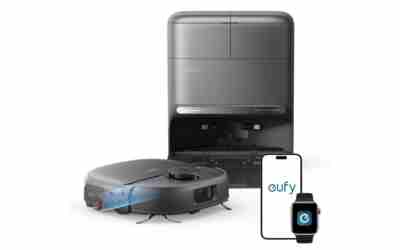
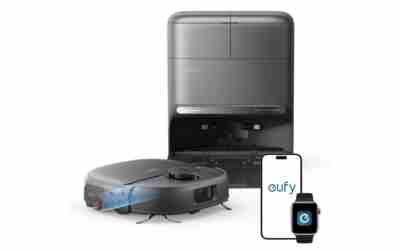
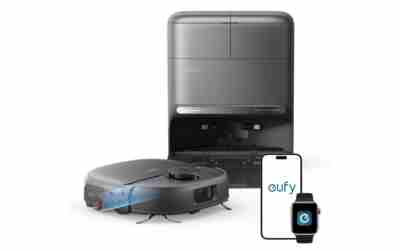
eufy E25 Robot Vacuum with HydroJet Mop

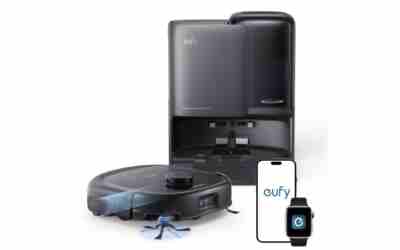
eufy C28 Robot Vacuum and Mop Combo, 15,000 Pa
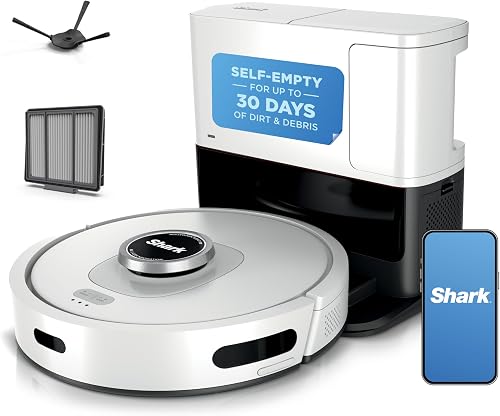
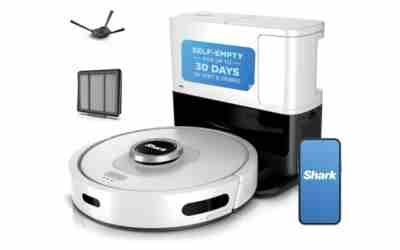
Shark AI Ultra Robot Vacuum AV2511AE
As an Amazon Associate we earn from qualifying purchases. Product prices and availability are accurate as of the date/time indicated.
Frequently Asked Questions
Can I stop the first mapping run partway through?
Yes, but send it back to the dock from the app rather than carrying it. Some models save a partial map and resume, while others restart. If the map looks incomplete afterward, delete it and run a fresh full pass.
Can I move the dock after the map is saved?
Sometimes, but not freely. Many models need a remap or a relocate step in the app, otherwise the robot may fail to return. Check your manual before moving it, and keep clearance in the new spot.
Is it okay to skip creating an account?
It depends on the brand. Many apps require an account for pairing, maps and firmware updates, while some robots work with buttons only. Without the app you lose room cleaning, no-go zones and scheduling.
Should I run the robot while I am home the first time?
Yes. Stay nearby for the first run so you can free a stuck wheel, catch a missed cable, and see where it hesitates. Those spots are what to fix with no-go zones or a cleared floor.
{“@context”: “https://schema.org”, “@type”: “FAQPage”, “mainEntity”: [{“@type”: “Question”, “name”: “Can I stop the first mapping run partway through?”, “acceptedAnswer”: {“@type”: “Answer”, “text”: “Yes, but send it back to the dock from the app rather than carrying it. Some models save a partial map and resume, while others restart. If the map looks incomplete afterward, delete it and run a fresh full pass.”}}, {“@type”: “Question”, “name”: “Can I move the dock after the map is saved?”, “acceptedAnswer”: {“@type”: “Answer”, “text”: “Sometimes, but not freely. Many models need a remap or a relocate step in the app, otherwise the robot may fail to return. Check your manual before moving it, and keep clearance in the new spot.”}}, {“@type”: “Question”, “name”: “Is it okay to skip creating an account?”, “acceptedAnswer”: {“@type”: “Answer”, “text”: “It depends on the brand. Many apps require an account for pairing, maps and firmware updates, while some robots work with buttons only. Without the app you lose room cleaning, no-go zones and scheduling.”}}, {“@type”: “Question”, “name”: “Should I run the robot while I am home the first time?”, “acceptedAnswer”: {“@type”: “Answer”, “text”: “Yes. Stay nearby for the first run so you can free a stuck wheel, catch a missed cable, and see where it hesitates. Those spots are what to fix with no-go zones or a cleared floor.”}}]}